Introduction
You spent months saving the perfect collection of websites. Research tabs, recipes, tools, tutorials — all neatly organized inside Chrome. Then one day, you switch devices, reinstall your browser, or just want a backup, and you realize you have no idea where those bookmarks actually live.
That is a frustrating moment. But here is the good news: learning how to export bookmarks from Chrome takes less than two minutes. You do not need any special software, technical skills, or a paid tool. Chrome has a built-in feature that handles everything for you.
In this guide, you will learn exactly how to export your Chrome bookmarks on any device, how to back them up safely, how to import them into another browser, and what to do if something goes wrong. By the end, you will never lose a saved link again.
Why You Should Export Your Chrome Bookmarks
Most people never think about their bookmarks until it is too late. Your browser bookmarks are more valuable than they seem. They represent hours of research and careful organization.
Here are the most common reasons people export Chrome bookmarks:
- Switching to a new computer and want all saved links to carry over
- Migrating to a different browser like Firefox, Edge, or Safari
- Creating a backup before a system reset or OS reinstall
- Sharing a resource list with a colleague or team
- Syncing bookmarks manually without relying on a Google account
Whatever your reason, the process is the same. Let us walk through it step by step.
How to Export Bookmarks from Chrome on a Desktop (Windows and Mac)
This is the fastest method. It works the same way on both Windows and Mac.
Step 1: Open the Chrome Bookmark Manager
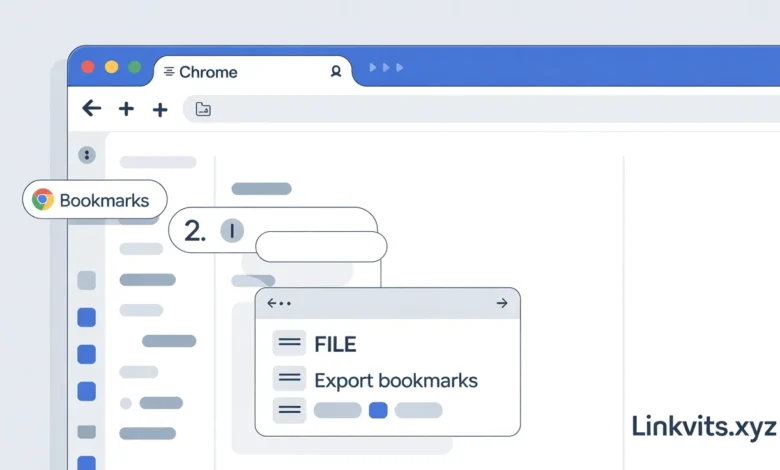
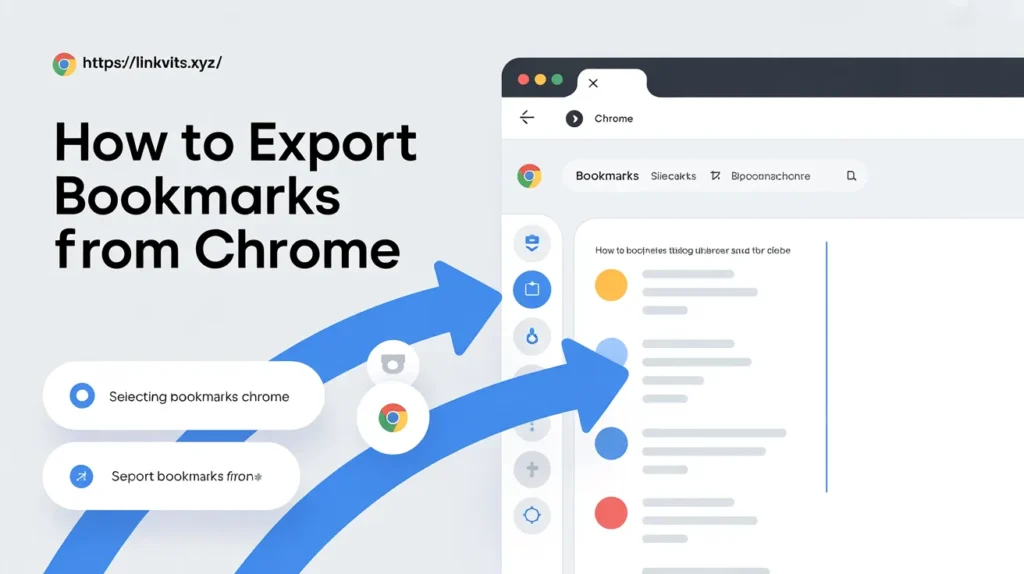
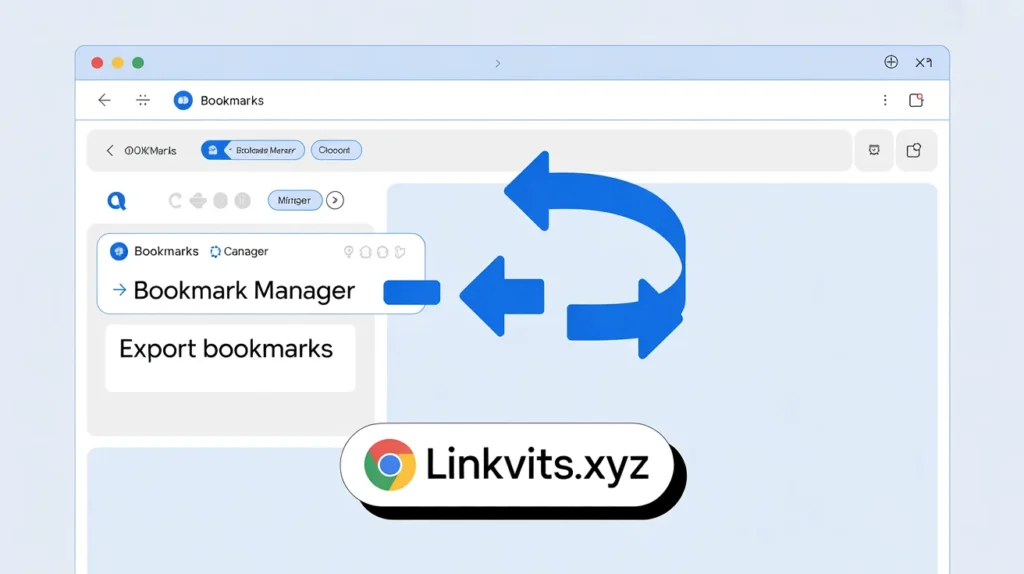
Open Google Chrome on your computer. Click the three dots icon in the top right corner of the browser. This is the Chrome menu. Hover over Bookmarks, then click Bookmark Manager from the dropdown. You can also press Ctrl + Shift + O on Windows or Cmd + Shift + O on Mac to open it instantly.
Step 2: Open the Export Option
Inside the Bookmark Manager, look for another three-dot icon in the top right area of the page, near the search bar. Click that icon. A small menu will appear with a few options. Click Export bookmarks.
Step 3: Save the HTML File
A file save dialog box will open. Chrome will name the file something like bookmarks_month_day_year.html. Choose where you want to save it on your computer and click Save. That is it. Your bookmarks are now saved as an HTML file on your device.
This file contains every single bookmark you have saved in Chrome, including all your folders and subfolders. It is a simple, portable format that almost every browser in the world can read.
Personal tip: I always save my exported bookmark file to a cloud storage folder like Google Drive or Dropbox right away. That way, even if my computer dies, the file is safe.
How to Export Chrome Bookmarks on Android
Chrome on Android does not have a built-in export feature the same way the desktop version does. But you have two solid options.
Option 1: Use Chrome Sync
The simplest approach is to sign into your Google account inside Chrome. Go to Settings > Sync and Google services and make sure bookmarks are set to sync. Once synced, your bookmarks are stored in your Google account and accessible from any device automatically.
Option 2: Use a Third-Party App or Desktop Export
If you want a physical HTML file, you need to sign into Chrome on a desktop first. Once your Android bookmarks have synced to your Google account, open Chrome on a desktop computer and follow the desktop export steps above. Your Android bookmarks will be included in the exported file.
How to Export Chrome Bookmarks on iPhone or iPad
Similar to Android, Chrome on iOS does not offer a direct export button. The Google Sync method is your best path here.
Sign into Chrome on your iPhone with your Google account. Enable bookmark syncing under Settings > Sync. Then open Chrome on a desktop computer and export the synced bookmarks as an HTML file. All your iPhone bookmarks will be part of that file.
What Is the Exported Bookmarks File?
When you export bookmarks from Chrome, you get an .html file. Do not let the technical extension intimidate you. This is just a simple text file formatted in a way that browsers understand.
You can open this file in any browser, and it will show you all your bookmarks as clickable links. You can also open it in a text editor like Notepad to see exactly what is inside.
The file structure looks like this: your bookmarks bar folders come first, followed by your other bookmarks, all organized in a nested list format. Every bookmark includes the page title and the full URL.
This format is called Netscape Bookmark Format, and it has been a universal standard since the early days of the web. Every major browser supports it, which makes exporting and importing between browsers seamless.
How to Import Your Exported Bookmarks into Another Browser
Once you have that HTML file, you can bring your bookmarks into almost any browser with just a few clicks.
Import into Mozilla Firefox
Open Firefox. Click the menu button, then go to Bookmarks > Manage Bookmarks. In the Library window, click Import and Backup, then choose Import Bookmarks from HTML. Select your exported file and click Open.
Import into Microsoft Edge
Open Edge and click the three-dot menu in the top right corner. Go to Favorites > More options > Import favorites. Under the import section, choose Bookmarks HTML file and select your Chrome export file.
Import into Safari (Mac)
Open Safari on your Mac. In the top menu bar, click File > Import From > Bookmarks HTML File. Find your exported Chrome file and click Import.
Import Back into Chrome
You can also use the HTML file to restore bookmarks in Chrome itself. Open the Bookmark Manager (Ctrl + Shift + O), click the three-dot menu inside Bookmark Manager, and choose Import bookmarks. Select your HTML file and Chrome will bring everything back.
How to Back Up Chrome Bookmarks Automatically
Manually exporting is great, but what if you want an automatic backup system? Here are a few approaches that save you time and effort.
Use Google Account Sync
Sign into Chrome with your Google account and turn on sync. Go to Settings > You and Google > Sync and Google services > Manage what you sync. Make sure the Bookmarks toggle is on. Chrome will automatically keep your bookmarks backed up to Google’s servers. You can access them from any device where you sign into Chrome.
Schedule Regular Manual Exports
Set a reminder on your phone or calendar once a month. Export your bookmarks and save the file to a cloud folder. This takes two minutes and gives you a reliable local backup that does not depend on any external service.
Use a Bookmark Manager Extension
Extensions like Raindrop.io or Toby let you import and sync your bookmarks across devices and platforms. They also give you better organization tools than Chrome’s built-in manager.
Common Problems When Exporting Chrome Bookmarks (And How to Fix Them)
Sometimes things do not go as smoothly as expected. Here are the most common issues and their simple fixes.
Problem: The Export Option Is Greyed Out
This can happen if Chrome is managed by an organization, like a school or employer. The admin may have disabled the export feature. Try using a personal Chrome profile instead, or contact your IT department.
Problem: Bookmarks Are Missing After Export
Make sure you are signed into the correct Google account. If you use multiple Chrome profiles, each profile has its own separate bookmarks. Switch to the right profile before exporting.
Problem: Imported Bookmarks Show as Duplicates
If you import into a browser that already has those bookmarks, duplicates can appear. Check your bookmark folders and delete the older set manually, or use a bookmark deduplication extension.
Problem: The HTML File Will Not Open
Try right-clicking the file and choosing Open with > Chrome or another browser. If it opens as a blank page, your file may be corrupted. Try exporting again from Chrome.
How to Organize Bookmarks Before You Export
Exporting messy bookmarks creates a messy import. Take five minutes before you export to clean up your bookmarks. It makes a big difference.
Here is a quick process:
- Open the Bookmark Manager (Ctrl + Shift + O).
- Delete any bookmarks you no longer need.
- Create clear folder names like “Work Resources,” “Recipes,” or “Tech Articles.”
- Drag bookmarks into the right folders.
- Now export your clean, organized collection.
When you import your organized bookmarks into a new browser, everything will land exactly where you want it. No chaos, no cleanup.
How to Export Specific Folders Instead of All Bookmarks
Chrome does not offer a built-in option to export just one folder. However, there is a simple workaround.
Create a temporary folder called “Export This.” Move only the bookmarks you want to export into that folder. Then export all your bookmarks the usual way. Once you import the HTML file into another browser, only use the bookmarks from that specific folder. Delete everything else.
It is a small extra step, but it gets the job done without needing any third-party tool.
The Difference Between Exporting and Syncing Chrome Bookmarks
Many people confuse these two actions. They work differently and serve different purposes.
Exporting creates a single HTML file saved on your computer. It is a snapshot in time. If you add more bookmarks tomorrow, the file does not update automatically. You need to export again.
Syncing connects your bookmarks to your Google account in real time. Every time you save a new bookmark, it automatically uploads to Google’s servers. When you sign into Chrome on a different device, your latest bookmarks are already there.
Both are useful. Sync is better for day-to-day access across devices. Exporting is better for a permanent, offline backup or for moving bookmarks to a different browser that does not support Google Sync.
Can You Export Bookmarks from Chrome Without Signing In?
Yes, you can. Chrome saves bookmarks locally on your device even without a Google account. The export process works exactly the same way whether you are signed in or not. Just open the Bookmark Manager and follow the export steps.
If you have never signed into Chrome, your bookmarks are stored only on that one device. Exporting them is the best way to make sure you do not lose them if your computer is ever lost, stolen, or reset.
Conclusion
Learning how to export bookmarks from Chrome is one of those simple skills that pays off every single time you switch devices or browsers. You put real effort into collecting and organizing those links. Taking two minutes to back them up is absolutely worth it.
Here is a quick recap of what you learned today:
- Open Chrome Bookmark Manager with Ctrl + Shift + O
- Click the three-dot menu inside Bookmark Manager
- Select Export bookmarks and save the HTML file
- Import that file into any other browser in seconds
- Use Google Sync for automatic, real-time backup across devices
Now that you know the process, take action right now. Open Chrome, export your bookmarks, and save that file somewhere safe. Future you will be glad you did.
Did this guide help you? Share it with someone who is switching browsers or setting up a new computer. They will thank you for it.
Frequently Asked Questions (FAQs)
Q1: How do I export bookmarks from Chrome to another computer? Export your bookmarks as an HTML file on your current computer. Transfer that file to the new computer using a USB drive, email, or cloud storage. Then open Chrome on the new computer, go to Bookmark Manager, and import the HTML file.
Q2: Where does Chrome save exported bookmarks? Chrome saves them wherever you choose during the file save dialog. The default is usually your Downloads folder. The file is named something like bookmarks_05_06_2026.html.
Q3: Can I export Chrome bookmarks without opening Chrome? Not directly through the browser. However, Chrome stores a raw bookmarks file in your computer’s local files. On Windows, it is at: C:\Users\YourName\AppData\Local\Google\Chrome\User Data\Default\Bookmarks. You can copy this file as a backup, but to get a clean HTML export, you need to open Chrome.
Q4: How do I export Chrome bookmarks on a Chromebook? The process is identical to the desktop method. Open Chrome, go to Bookmark Manager, click the three-dot menu, and select Export bookmarks. Save the HTML file to your local Downloads folder or Google Drive.
Q5: Will exporting bookmarks delete them from Chrome? No. Exporting creates a copy of your bookmarks. Your original bookmarks stay in Chrome exactly as they are. You can export as many times as you want without changing anything.
Q6: How do I export bookmarks from Chrome to Safari? Export your bookmarks as an HTML file from Chrome. Then open Safari on your Mac, go to File > Import From > Bookmarks HTML File, and select your exported file. All your Chrome bookmarks will appear in Safari.
Q7: Can I export Chrome bookmarks on mobile? Not directly from the mobile app. Sign into your Google account on Chrome mobile to sync your bookmarks, then export them from a desktop version of Chrome.
Q8: How do I export Chrome bookmarks to Firefox? Export your Chrome bookmarks as an HTML file. Open Firefox and go to Bookmarks > Manage Bookmarks > Import and Backup > Import Bookmarks from HTML. Select your Chrome HTML file and your bookmarks will appear in Firefox.
Q9: What format does Chrome use to export bookmarks? Chrome exports bookmarks in HTML format, specifically the Netscape Bookmark File Format. This is a universal standard that every major browser supports.
Q10: How often should I back up my Chrome bookmarks? Once a month is a good habit for most people. If you save a lot of new bookmarks regularly, export every two weeks. Using Google Sync alongside manual exports gives you the best protection.
Read More…….
Author Bio
Zara Ahmed is a digital productivity writer and tech educator with over seven years of experience simplifying browser tools, software guides, and everyday tech for everyday users. She writes clear, jargon-free tutorials that help readers take control of their digital lives. When she is not testing browser features, she is curating her own (very long) bookmark collection.Share