Introduction
You’re two minutes into a video call when your camera freezes. Your audio cuts out. Someone’s unmuted dog starts barking in the background. Sound familiar? Video conferencing has become the backbone of how we work, learn, and connect. Whether you’re leading a team meeting, interviewing for your dream job, or catching up with family across the country, mastering video conference tips isn’t optional anymore—it’s essential.
But here’s the thing: most people wing it. They join calls with poor lighting, distracting backgrounds, and zero preparation. Then they wonder why their message doesn’t land or why they feel invisible in important meetings.
This article will walk you through everything you need to know. From technical setup to body language, from background choices to engagement strategies, you’ll discover practical video conference tips that actually work. Let’s turn your next virtual meeting into your best one yet.
Get Your Tech Setup Right First
Test Everything Before You Join
Nothing screams unprofessional like fumbling with your microphone while everyone waits. Always test your equipment 10-15 minutes before any important call.
Check your camera. Make sure it’s positioned at eye level, not looking up your nose or down at the top of your head. Verify your microphone picks up your voice clearly without background noise. Test your internet connection—a stable connection prevents those awkward frozen-face moments.
Keep backup plans ready. Know how to dial in by phone if your internet fails. Have your host’s contact information handy. These small preparations save big headaches.
Invest in Quality Audio
Here’s a truth bomb: bad audio matters more than bad video. People will forgive a grainy picture, but they won’t stick around if they can’t hear you clearly.
Consider these audio improvements:
- USB microphone: Even a basic model beats built-in laptop mics
- Headphones with mic: Reduces echo and background noise
- Dedicated headset: Best for frequent calls and professional settings
- Quiet space: Sometimes the simplest solution is the best one
Position your microphone correctly. It should sit about six inches from your mouth. Too close creates distortion. Too far picks up room noise.
Lighting Makes You Look Professional
Good lighting transforms how you appear on camera. It’s one of the most overlooked video conference tips, yet it makes an enormous difference.
Face a window during daytime calls. Natural light from the front flatters everyone. Avoid sitting with windows behind you—that creates silhouette syndrome where you look like a witness protection participant.
For evening calls or windowless rooms, invest in a ring light or desk lamp. Position lights in front of you, slightly above eye level. This eliminates shadows and gives you that professional glow.
Create an Impressive Background
Choose Your Setting Wisely
Your background tells a story about you. Make sure it’s the story you want to tell.
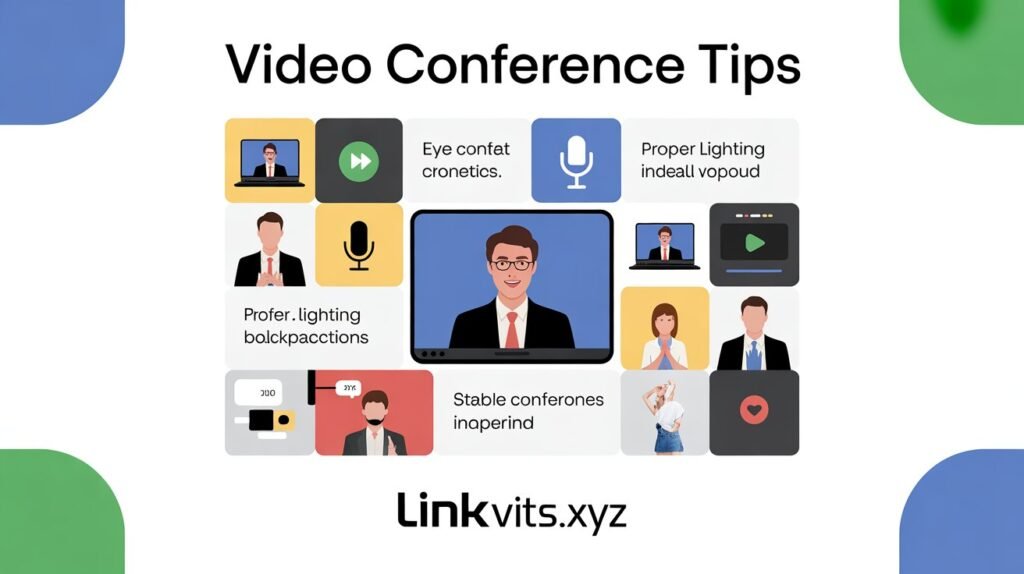
Opt for clean, uncluttered spaces. A bookshelf works great—it suggests you’re thoughtful and well-read. A plain wall with minimal art keeps focus on you. Avoid beds, kitchens, or anything too personal for professional calls.
Virtual backgrounds can work, but use them sparingly. They often glitch when you move, creating that weird floating-head effect. When you do use them, choose professional images that don’t distract from your message.
Eliminate Distractions
Walk through your space like a detective. What can people see behind you? What might move or make noise during your call?
Remove these common distractions:
- Piles of laundry or dishes: They scream disorganization
- Personal photos: Keep work boundaries professional
- Busy patterns or bright colors: They pull focus from your face
- Open doors: Someone might walk through mid-meeting
- Windows with movement outside: Cars and people draw eyes away
Consider your room’s acoustics too. Hard surfaces create echo. Add a rug, curtains, or soft furnishings to dampen sound bounce.
Nail Your On-Camera Presence
Position Your Camera Correctly
Camera angle affects how people perceive you. Get this right and you’ll instantly appear more confident and engaging.
Place your camera at eye level. Stack books under your laptop if needed. This creates natural eye contact when you look at the camera. Looking down at a low camera makes you seem disengaged or superior. Looking up gives viewers an unflattering view.
Sit an arm’s length away from the camera. Too close feels invasive. Too far makes you look disconnected and harder to hear.
Dress for Success (Yes, Even at Home)
I learned this lesson the hard way during a client presentation. I wore a professional top with pajama bottoms, thinking no one would know. Then I had to stand up to grab a document. Lesson learned.
Dress as you would for an in-person meeting. Solid colors work best on camera—they don’t create visual noise like busy patterns. Avoid white (it can blow out on camera) and black (it can look too stark). Blues, grays, and earth tones flatter most people.
Pay attention to your entire outfit, not just what shows in frame. You never know when you’ll need to stand or adjust something. Plus, dressing professionally puts you in the right headspace.
Master Your Body Language
Your physical presence communicates just as much as your words. Use it wisely.
Sit up straight but stay relaxed. Slouching makes you look uninterested or tired. Ramrod stiffness makes you seem uncomfortable. Find that middle ground where you look alert and approachable.
Make “eye contact” by looking at your camera, not at faces on screen. This takes practice but transforms how connected you seem. Glance at the screen to read the room, then return your gaze to the camera when speaking.
Use hand gestures naturally. They add energy and emphasis to your points. Keep movements within frame—wild gestures that leave the screen look chaotic. Nod when others speak to show you’re listening actively.
Engage Like a Pro During Calls
Mute Strategically
The mute button is your friend, but don’t hide behind it all meeting long.
Mute yourself when:
- Background noise might interrupt (construction, dogs, kids)
- You’re not speaking in large group calls
- You need to cough, sneeze, or handle a brief interruption
- You’re eating or drinking (better yet, avoid this on camera)
Unmute when you’re about to speak. Don’t wait until you’re called on—that creates awkward dead air while you scramble for the button. Stay unmuted in small meetings where you’re an active participant.
Participate Actively
Sitting silently through a video call makes you forgettable. Even in large meetings, find ways to contribute.
React visibly to what others say. Smile, nod, raise your eyebrows at surprising information. These micro-expressions keep you present and show engagement. Use the chat feature to share links, answer questions, or add quick thoughts without interrupting.
Ask questions. It demonstrates you’re listening and thinking critically. Even simple clarifications like “Can you expand on that point?” add value.
Share your screen when relevant. Walking through documents or presentations together increases collaboration and keeps everyone on the same page.
Manage Your Attention
Multitasking during video calls shows. Your eyes dart around. Your responses lag. People notice.
Close unnecessary tabs and applications. Turn off phone notifications. Resist the urge to check email or browse while someone else speaks. You wouldn’t pull out your phone during an in-person meeting—don’t do the virtual equivalent.
Take notes by hand if possible. Typing notes can look like you’re not paying attention. If you must type, announce it: “I’m taking notes on these action items” shows you’re engaged, not distracted.
Handle Common Challenges Smoothly
Deal with Technical Glitches Gracefully
Technology fails. Accept this reality and prepare for it.
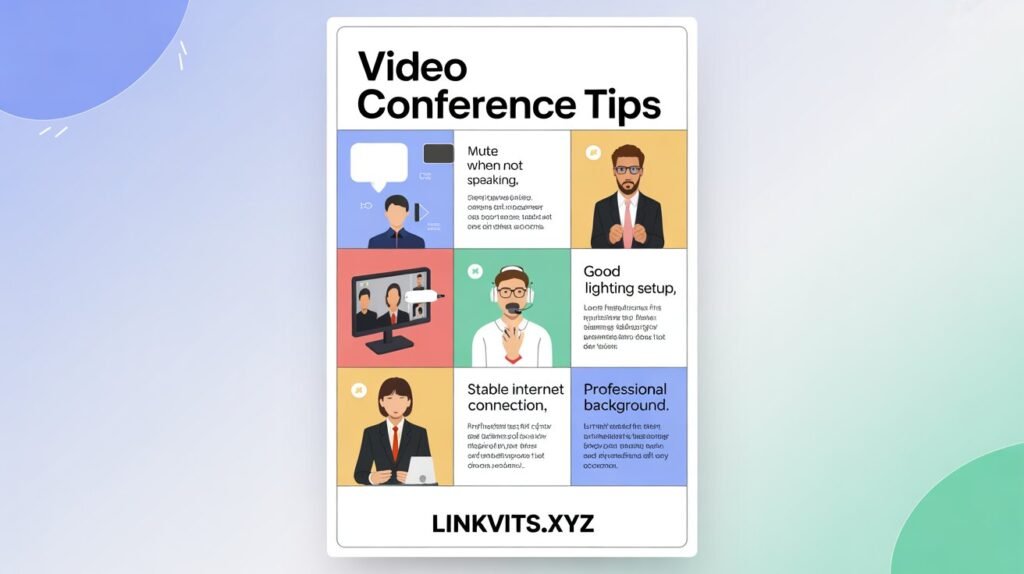
When your internet freezes, don’t panic. Wait a moment to see if it resolves. If not, drop off the call and rejoin. Keep the host’s phone number handy to call in if your internet completely dies.
If your audio cuts out, use the chat immediately. Type “Having audio issues, one moment” so people know you’re still there. This prevents that awkward silence where everyone wonders if you’ve disappeared.
When others experience issues, be patient and flexible. Suggest they rejoin, or offer to continue via phone if video isn’t working. These moments of grace build professional goodwill.
Navigate Time Zones Effectively
Global teams face scheduling nightmares. Make it easier on everyone.
Always specify time zones in meeting invites. Don’t assume “3 PM” means the same thing to everyone. Write “3 PM EST / 12 PM PST / 8 PM GMT” to eliminate confusion.
Use tools like World Time Buddy to find reasonable meeting times. Rotate challenging time slots so one person or region doesn’t always suffer the 5 AM call.
Record important meetings when possible. This allows people to catch up if timing makes live attendance impossible. Always announce when you’re recording and get consent.
Manage Meeting Fatigue
Video calls are exhausting. Research shows they’re more draining than in-person meetings because of the intense focus required to read nonverbal cues through a screen.
These video conference tips combat fatigue:
- Schedule shorter meetings: Default to 25 or 50 minutes instead of 30 or 60
- Build in breaks: Stand, stretch, look away from the screen between calls
- Use audio-only when appropriate: Not every conversation needs video
- Suggest walking meetings: Phone calls while walking provide movement and fresh air
- Batch similar calls: Group meetings together rather than scattering them throughout the day
Lead Effective Video Meetings
Set Clear Expectations Upfront
When you’re hosting, your preparation sets the tone for everyone else.
Send an agenda ahead of time. Include topics, time allocations, and any materials participants should review. This helps people prepare and keeps discussions focused.
Start on time and end on time. Chronic late starters train people to show up late. Meetings that run over disrespect everyone’s schedule.
Establish ground rules at the beginning:
- “Please keep yourself muted unless speaking”
- “Use the raise hand feature for questions”
- “We’ll leave 10 minutes at the end for open discussion”
Clear expectations prevent chaos and frustration.
Facilitate Inclusive Participation
Some people dominate video calls while others disappear. Your job as host is balancing this dynamic.
Call on quieter participants directly. Frame it positively: “Sarah, I’d love to hear your perspective on this.” Give them a moment to unmute and gather thoughts.
Watch for raised hands, both virtual and physical. Acknowledge them: “I see Mark has his hand up—let’s hear from him after this point.”
Use breakout rooms for larger meetings. Small group discussions let everyone contribute, then report back to the full group. This prevents one or two voices from dominating.
End with Clear Next Steps
Meetings without action items waste everyone’s time. Always close with clarity.
Recap key decisions made during the call. Assign specific action items to specific people with specific deadlines. Vague tasks like “someone should look into that” disappear into the void.
Ask if anyone has final questions or concerns. Give people a chance to voice confusion before you all disconnect.
Follow up with written notes or a summary email. This creates accountability and ensures everyone heard the same information.
Advanced Video Conference Tips for Special Situations
Job Interviews via Video
Virtual interviews demand extra preparation beyond standard video conference tips.
Do a full dress rehearsal. Have a friend join a test call to check your setup. Practice answering common questions on camera—it feels different than in-person interviews.
Research the company’s culture and match your background accordingly. A creative agency might appreciate personality in your space. A law firm might expect conservative professionalism.
Keep your resume and notes nearby but off-screen. Glancing down occasionally is fine, but don’t read from a script. Maintain that natural eye contact with the camera.
Have a glass of water within reach. Nerves create dry mouth. But avoid noisy ice that rattles into your microphone.
Webinars and Presentations
Presenting to dozens or hundreds of people through a screen requires different skills.
Speak with more energy than feels natural. Your enthusiasm doesn’t translate as strongly through video, so amp it up 20% from your normal presentation style.
Vary your tone and pace. Monotone voices combined with screen fatigue put people to sleep. Speed up for exciting points, slow down for complex information.
Use visual aids strategically. Share your screen to show slides, but return to camera view regularly to maintain connection. Your face creates human engagement that slides alone can’t deliver.
Build in interaction every 7-10 minutes. Polls, questions, chat responses—anything that pulls participants back from their email inbox.
Virtual Social Events
Yes, these need strategy too. Awkward silence on a social video call is somehow worse than in person.
Plan activities beyond just talking. Virtual games, shared meal preparation, or watching something together gives structure to conversations.
Keep groups small for social calls. Three to five people allows real conversation. Larger groups need a designated facilitator or they devolve into chaos.
Embrace the mute dance. In casual settings, people popping on and off mute to contribute creates natural conversation flow rather than formal turn-taking.
Protect Your Privacy and Security
Use Secure Platforms Responsibly
Not all video platforms offer equal security. Choose wisely, especially for sensitive conversations.
Enable passwords for meetings. This prevents uninvited guests from crashing your calls. Use waiting rooms for added control—you can see who wants to join before admitting them.
Understand your platform’s privacy settings. Can participants see each other’s email addresses? Are calls automatically recorded? Who has screen sharing permissions? Configure these settings before your meeting starts.
Never share meeting links publicly on social media. Trolls actively search for open meetings to disrupt. Send invitations directly to intended participants only.
Be Mindful of Information Visible on Screen
Screen sharing exposes more than you realize. One careless moment can reveal sensitive information.
Close personal tabs before sharing your screen. Your bank account, private emails, or embarrassing browser history don’t need an audience.
Use a clean desktop. Files named “resignation_letter.doc” or client folders with confidential information shouldn’t flash across everyone’s screens.
Share specific application windows rather than your entire desktop when possible. This gives you more control over what people see.
Disable notifications before important calls. You don’t want Slack messages, calendar reminders, or text previews popping up while you’re presenting.
Conclusion
Mastering video conference tips transforms you from an awkward participant fumbling with the mute button into a confident, professional communicator. The key lies in preparation, presence, and practice.
Start with the basics: reliable technology, good lighting, clean backgrounds. Build from there with strong body language, active engagement, and smooth handling of inevitable technical hiccups. Whether you’re joining a casual team check-in or presenting to senior executives, these strategies will serve you well.
Remember that everyone started somewhere. Those seemingly effortless video presenters you admire? They’ve practiced these same techniques until they became second nature. You can do the same.
The next time you join a video call, try implementing just two or three of these video conference tips. Master those, then add more. Before you know it, you’ll be the person others look to as the model for professional virtual presence.
What video conference challenge frustrates you most? Which of these tips will you try first? Your next virtual meeting is an opportunity to shine—so go show them what you’ve got.
FAQs
Q: How early should I join a video conference?
Join 2-3 minutes early for most meetings. This gives you time to test your audio and video, plus shows respect for the host’s time. For important presentations or interviews, log in 5-10 minutes early to handle any unexpected technical issues.
Q: Should I use a virtual background for professional meetings?
Virtual backgrounds work best when your actual background isn’t presentable or when your space is too distracting. However, they can glitch and look unprofessional if your platform or computer struggles with the technology. A real, clean background usually looks better and more authentic.
Q: What’s the best camera angle for video calls?
Position your camera at eye level or slightly above. This creates natural, flattering angles and simulates eye contact when you look at the lens. Avoid low angles that look up at you or high angles that look down—both are unflattering and make connection difficult.
Q: How can I avoid looking at myself during video calls?
Hide self-view in your video platform settings. Most platforms allow you to minimize or hide your own video feed so you focus on others instead of being distracted by your own appearance. This helps reduce self-consciousness and improves your presence.
Q: Is it rude to eat or drink during video meetings?
Sipping water or coffee is generally acceptable—just mute while you do it. Eating meals is unprofessional in most business contexts unless it’s explicitly a lunch meeting where everyone is eating together. When in doubt, eat before or after the call.
Q: How do I handle my kids or pets interrupting a video call?
Acknowledge the interruption briefly and naturally, handle it quickly, then return to the meeting. Most people understand these situations, especially in home offices. Keep treats or toys nearby to redirect pets. For kids, have a backup caregiver if possible during critical meetings.
Q: What should I do if I freeze or disconnect during an important meeting?
Rejoin immediately if possible. Once reconnected, briefly apologize without over-explaining: “Sorry, I had a connection issue—could you repeat the last point?” Have the host’s phone number ready as a backup so you can call in if your internet completely fails.
Q: How can I stay engaged during long video meetings?
Take brief notes by hand, participate actively in chat, ask questions, and use body language to show engagement. Stand during some meetings if possible. Schedule breaks between back-to-back calls. Consider using browser extensions that block distracting websites during meeting times.
Q: Should I record video meetings?
Only record with explicit permission from all participants and a clear purpose (reference for notes, sharing with absent team members, training material). Always announce when recording starts. Be aware of privacy laws—some jurisdictions require consent from everyone being recorded.
Q: What’s the best way to handle time zone confusion in meeting invites?
Always include multiple time zones in your invitation and confirm with participants. Use scheduling tools like Calendly or World Time Buddy that automatically adjust for time zones. When in doubt, send a confirmation message with the time written in each participant’s local zone.
also read linkvikts.xyz